
Warning: If you modify the Query-id of a certain query, it can not be used in the Segregation of Duties functionality.
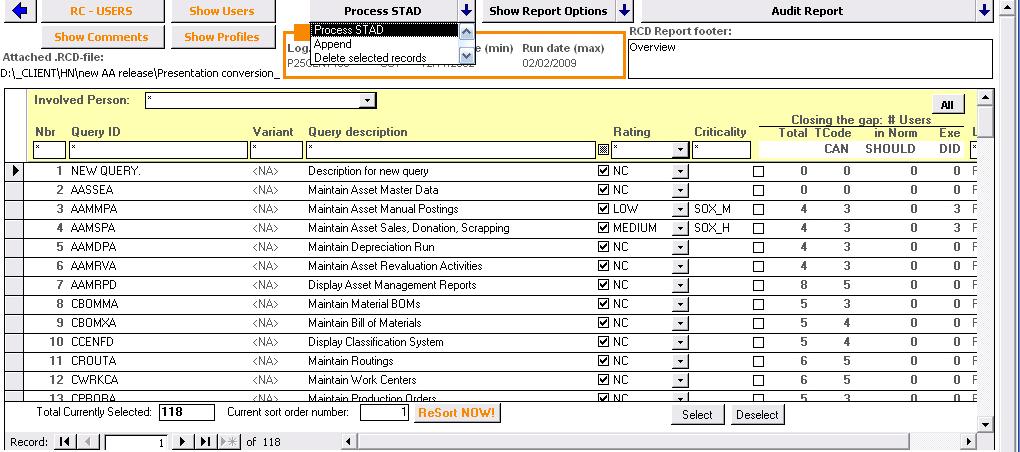
• The ‘ReSort NOW!’-button resorts all the entries in the CSI8AA Result Container. To do so, you need to select the first row before you click this button.
• Select turns the tick mark on, whereas Deselect turns off. ‘Delete Selected Records’ permanently deletes selected rows. Deletion will be performed on all entries that are ticked marked.
Note: Deleting information in Result Container is permanent! So, be careful with deletion of selected rows in the Result Container.
Note: Newly added Result Container entries are by default selected. Since all Result Container information is no longer stored in the CSI8AA application itself, you need to backup the separate Results Container database instead of the CSI8AA application.
• The 'Show Comments'-button opens the dialog box with comments. These findings/issues, Risk/Opportunity, Recommendations, Management Comments, Control Objective and Suggested Controls can be edited in a text box and saved by clicking the pen-symbol. In this separate dialog you have an overview of the total number of users and the number of users with S_TCODE authorization per User Type/ User Status combination
• The 'Append'-button on the top of the ‘Result Container – Queries’ screen enables you to add entries from other Result Containers. If this button is not lit, you need to choose ‘Append’ from the drop-down list first. This simple functionality allows you to merge Result Container information from different audits. In doing so, you can equally merge audits that relate to different logical systems.
• Advanced Info under the Report Cockpit button gives you valuable information concerning the query.
• Report footer area allows you to customize the footer of your report.
• The 'Show Users'-button displays an overview of all users which meet the selection criteria for a specific query. This popup screen also provides you with user information such as user type, status, T-code and Norm during run (for this query).
When a user has executed a query, this will be indicated by the 'E' in the Exe-column. Double clicking on this 'E' will launch a popup where you can find additional information regarding this user's execution (such as frequency and Transaction code).
Note: This information can not be edited in the Result Container.
• The 'Process STAD'-button will make an indication in the query results whether a user has performed a query.
When this button is not lit, you need to attach the appropriate STAD information database in the attach manager first.
The transaction logging information originates from the CSI STAD Analyzer output database (or has been directly retrieved through the free CSI Data Translator).
Please visit our website for more information on how to retrieve STAD information.
In the next screenshot, 3 users have authorization access for Maintain Asset Manual Postings, and these 3 users have actually executed the functionality.
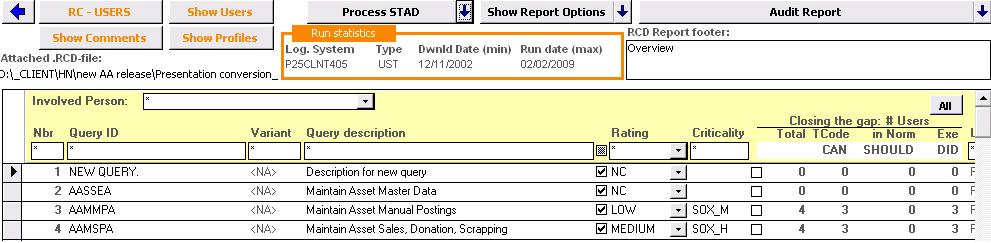
Note: The ‘Executed’ information of old Result Container mdb’s will automatically be converted from blank into ‘-”.
• The 'Show Profiles'-button displays an overview of all profiles which meet the selection criteria for a specific query.
Double-click a profile in order to open 'The Ultimate Remediation'-functionality. This will list an overview of all other functionality which is granted on authorization value level, transaction code level (or both).
The current norm information per user functionality is crucial in order to determine the type of action that needs to be taken in order to remediate this functionality for a particular user.
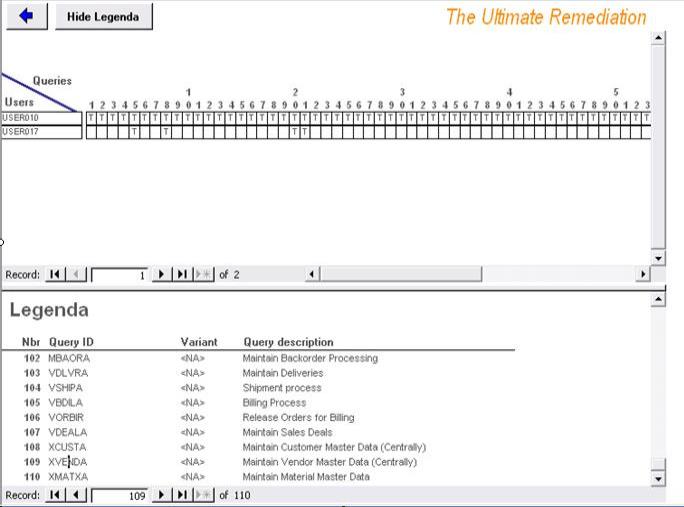
The example above shows that the F_ANZ profile (partially) authorizes 17 different queries. Also,1 user with his respective normative information per functionality has been listed as well.
The Ultimate Remediation supports you to discover how you can remove access for a particular functionality by reviewing the table:
1. Row contains all “N”: This indicates that the user should not have any of the functionality that is granted by the role / profile Remove the role from the user. In this example, no user has N for all queries. This means that you risk removing (possibly) allowed functionality from this user. Therefore, you cannot remove F_ANZ.
2. Column contains all “N”: This indicates that all users should not have the functionality that is granted by the role / profile Remove authorizations from the role. In this example, the user should not have access to query 5. Therefore, profile F_ANZ can be modified in such a way that it no longer provides access to query 5.
3. Column contains a BLANK: This indicates that the role gives only partially access to the functionality (Accumulation of Access Rights) Focus on other roles / profiles. In this example, USER010 has access to all 17 queries.This means that USER010 has partially access to all these queries through the profile F_ANZ.
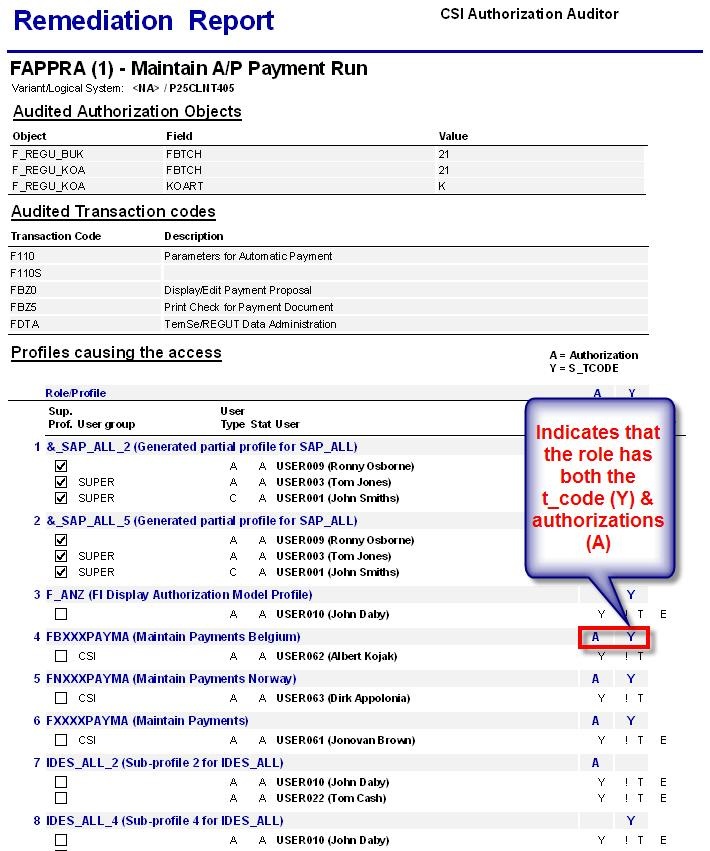
The remediation report help to solve access issues by identifying roles and all the users assigned to these roles.
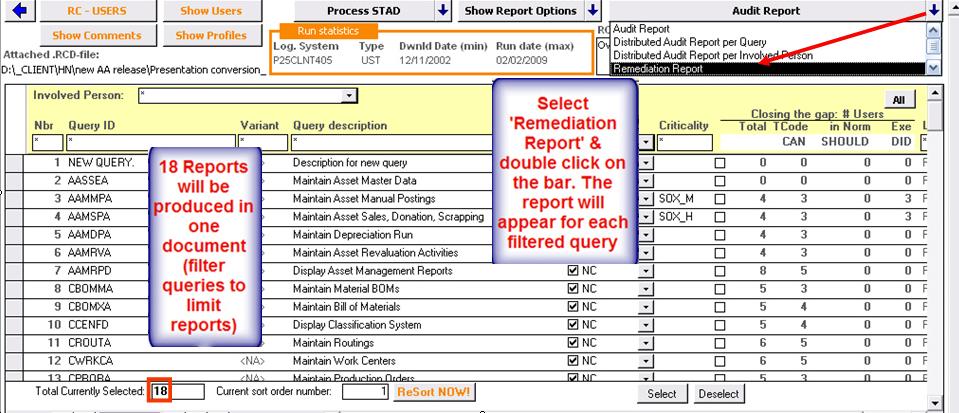
The following report will appear:
CSI tools BVBA © 2012 - All Rights Reserved
 General